<cfscript>
// Reset demo on subsequent
executions.
cleanupFile( "./images.zip"
);
//
-------------------------------------------------------------------------------
//
//
-------------------------------------------------------------------------------
//
// Normally, CFExecute has no
sense of a "working directory" during execution.
// However, by proxying our
command-line execution through a Shell Script (.sh), we
// can CD (change directory)
to a given directory and then dynamically execute the
// rest of the
commands.
executeFromDirectory(
// This is the WORKING
DIRECTORY that will become the context for the rest of
// the script
execution.
expandPath( "./path/to"
),
// This is the command that
we are going to execute from the WORKING DIRECTORY.
// In this case, we will
execute the ZIP command using RELATIVE PATHS that are
// relative to the above
WORKING DIRECTORY.
"zip",
// These are the arguments to
pass to the ZIP command.
[
// Regulate the speed of
compression: 0 means NO compression. This is setting
// the compression method to
STORE, as opposed to DEFLATE, which is the
// default method. This will
apply to all files within the zip - if we wanted
// to target only a subset of
file-types, we could have used "-n" to white-
// list a subset of the input
files (ex, "-n .gif:.jpg:.jpeg:.png").
"-0",
// Recurse the input
directory.
"-r",
// Define the OUTPUT file
(our generated ZIP file).
expandPath( "./images.zip"
),
// Define the INPUT file -
NOTE that this path is RELATIVE TO THE WORKING
// DIRECTORY! By using a
relative directory, it allows us to generate a ZIP
// in which the relative
paths become the entries in the resultant archive.
"./my-cool-images",
// Don't include files in
zip.
"-x *.DS_Store"
]
);
echo( "<br />" );
echo( "Zip file size: "
);
echo( numberFormat(
getFileInfo( "./images.zip" ).size ) & " bytes" );
echo( "<br /><br
/>" );
//
-------------------------------------------------------------------------------
//
//
-------------------------------------------------------------------------------
//
/**
* I execute the given series
of commands from the given working directory. The
* standard output is printed
to the page. If an error is returned, the page request
* is aborted.
*
* @workingDirectory I am the
working directory from whence to execute commands.
* @commandName I am the
command to execute from the working directory.
* @commandArguments I am the
arguments for the command.
*/
public void function
executeFromDirectory(
required string
workingDirectory,
required string
commandName,
required array
commandArguments
) {
// The Shell Script that's
going to proxy the commands is expecting the working
// directory to be the first
argument. As such, let's create a normalized set of
// arguments for our proxy
that contains the working directory first, followed by
// the rest of the
commands.
var normalizedArguments = [
workingDirectory ]
.append( commandName )
.append( commandArguments,
true )
;
execute
name = expandPath(
"./execute_from_directory.sh" ),
arguments =
normalizedArguments.toList( " " )
variable =
"local.successOutput"
errorVariable =
"local.errorOutput"
timeout = 10
terminateOnTimeout =
true
;
if ( len( errorOutput ?: "" )
) {
dump( errorOutput );
abort;
}
echo( "<pre>" & (
successOutput ?: "" ) & "</pre>" );
}
/**
* I delete the given file if
it exists.
*
* @filename I am the file
being deleted.
*/
public void function
cleanupFile( required string filename ) {
if ( fileExists( filename ) )
{
fileDelete( filename );
}
}
</cfscript>
As you can see, I've created an executeFromDirectory() User-Defined
Function (UDF) which takes, as its first argument, the working
directory from which we are going to execute the rest of the commands.
Then, instead of executing the zip command directly, we are proxying
it through our bash script.
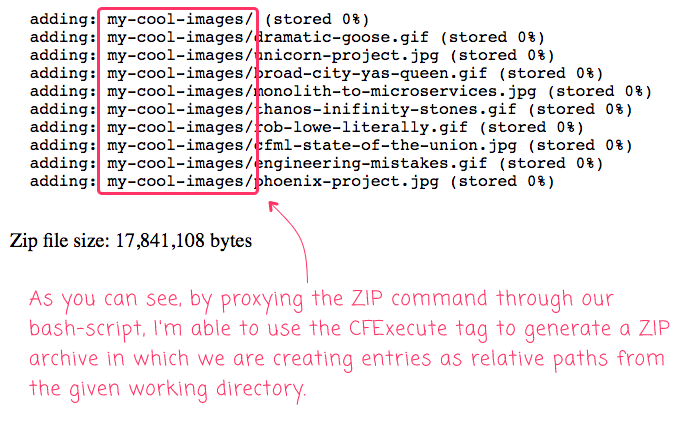
And, when we run the above ColdFusion code, we get the following
output:
Very cool! It worked! As you can see from the zip debug
output, the entries in the archive are based on the relative paths
from the working directory that we passed to our proxy.
Now that I know that the ProcessBuilder class exists, I'll
probably just go with that approach in the future. That said, it was
exciting (and, honestly, very frustrating) for me to write my first real
bash-script to allow the CFExecute tag to execute commands from a given
working directory in Lucee CFML. Bash scripting seems.... crazy; but, it
also seems something worth learning a bit more about.
You Might Also Enjoy Some of My Other Posts
Run commands via SSH to a remote server using ColdFusion, Putty and Plink
By: Brian Harvey
Heartland Web Development: 27 April 2015
In order to create a real time dynamic IP whitelist solution for a
client I needed to be able to SSH into a pfSense fiewall using
ColdFusion and kick off a few .sh files to update the firewall's ip
whitelist. ColdFusion doesn't have the ability to SSH directly, but by
using <cfexecute>, Putty and Plink you can get the job done.
Here is how to do it:
1. Download Putty and Plink.
Putty is an SSH client
for windows, and Plink is a command line interface to Putty.
2. Launch Putty and create a "stored session" to the target server. I
named my stored session "firewall". Now log into the remote
server using the saved session so that an authentication key is
generated and stored in Putty. Once you have generated an
authentication key and are logged in you can exit your session and
close Putty.
3. Now you can run <cfexecute> to SSH into the remote server
and run .sh files.
<cfexecute name="C:\WINDOWS\system32\cmd.exe"
arguments="/c C:\plink.exe -v root@firewall -pw
MyPassword /cf/conf/putconfig.sh" timeout="5">
</cfexecute>
There was one "gotcha" I discovered with running the command using
ColdFusion. I was able to run the plink command all day long
from the cmd prompt:
C:\plink.exe -v root@firewall -pw MyPassword
/cf/conf/putconfig.sh.
But when I tried to run it as an argument in <cfexecute> it
would fail. I was stumped until I came across this blog post by
Ben Forta.
Ben points out that in Windows, you need to insert "/c" as the first
argument in the string in order to tell Windows to to spin up a
command interpreter to run and terminate upon completion.
This Works:
arguments="/c C:\plink.exe -v root@firewall -pw MyPassword
/cf/conf/putconfig.sh" timeout="5"
This Doesn't Work:
arguments="C:\plink.exe -v root@firewall -pw MyPassword
/cf/conf/putconfig.sh" timeout="5"
That little extra had me spinning my wheels for the better part of a
day until I ran across Ben's post.